- Blog
Using Trusted Pools to Protect Your Fleet
What happened
On the evening of Saturday, November 14, a bad actor used Luxor Commander’s access to miners’ local networks to change the pool settings on miners at several mining operations. The miners were pointed at a single wallet on OCEAN’s pool. OCEAN was only the destination. Nothing on OCEAN’s side was compromised. Luxor confirmed the incident in its own post.
Where Foreman helped
Foreman was not the way in. None of the pool changes came through Foreman. They came from outside, over each site’s local network.
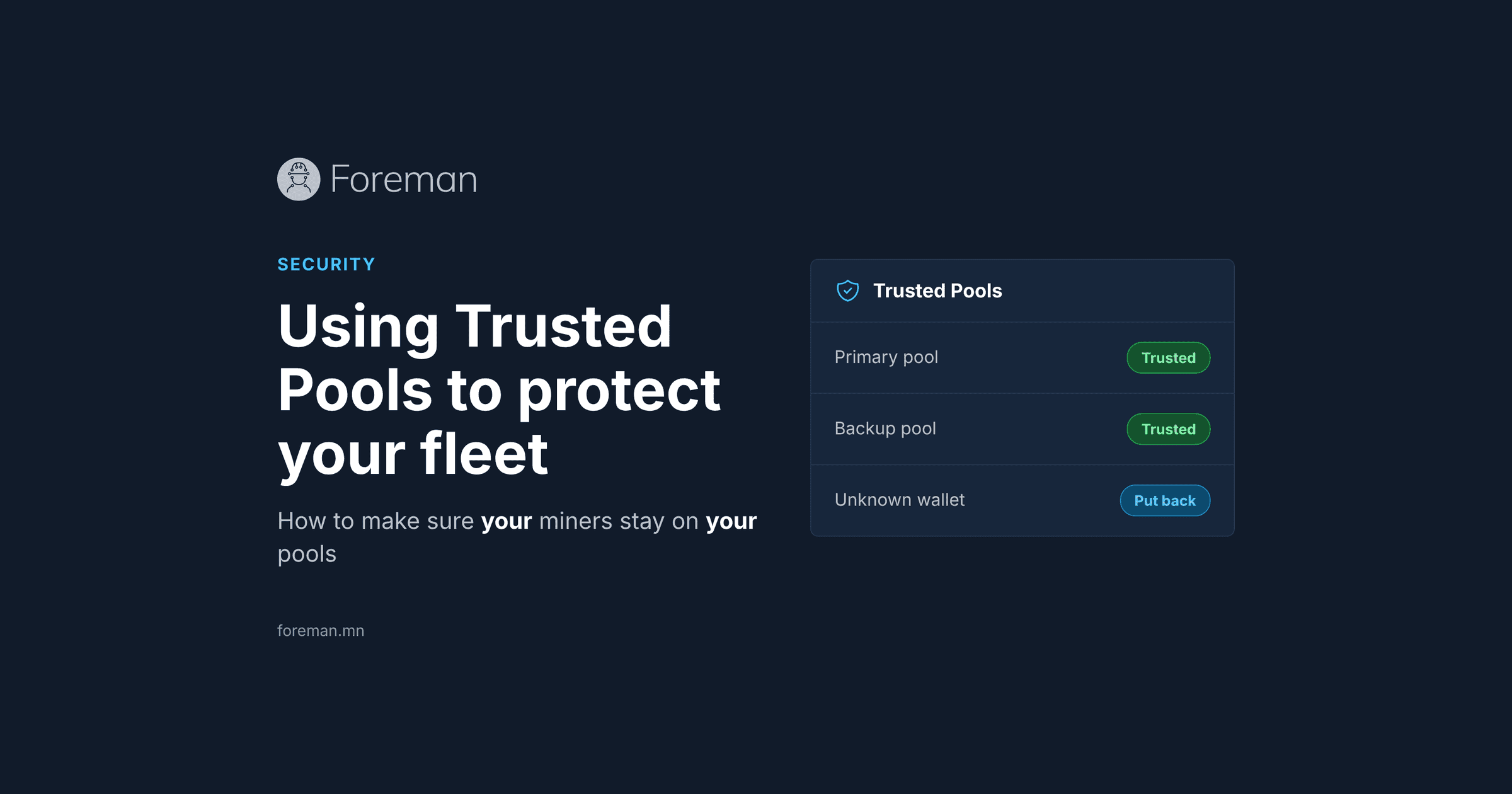
When configured correctly, Foreman’s Trusted Pools feature with triggers took action on 99.7% of the miners it covered. Trusted Pools tells Foreman which pools and wallets your miners are allowed to use, so it can flag any miner that drifts. A trigger then puts that miner back on your pools automatically and can alert key staff. Covered miners were flagged within minutes and put back. The bad settings were pushed again, up to six more times, and the triggers put the miners back each time until the pushes stopped.
In total, Foreman took action on about 57% of impacted miners. Unfortunately, the other 43% had no trigger covering them. The most common gaps:
- No trigger, or no Trusted Pools at all. Foreman saw the new pool but had no instructions to act on it.
- A trigger that waited too long. A trigger’s “For … Interval(s)” setting is how long a miner must be off-pool before the trigger acts. An interval is about one minute, so set to 120, miners mine for someone else for two hours first.
- Triggers that didn’t reach every account. A trigger created on one sub-account only covers that sub-account. Miners in the others were left out.
- Alerts that never went out. Alert triggers were scoped to retired Pickaxes, or were already open for an old problem.
Checklist: make sure your pools are protected
- Set up Trusted Pools. In Settings, go to Mining Pools, then Trusted Pool Configurations. Add every pool you mine to, including backups.
- Fill in the Worker Expression, not just the Stratum Expression. The worker is where your wallet or pool account lives. A rule that trusts a pool with any worker lets an attacker use that same pool with their own wallet.
- If you mine to OCEAN, consider running your own DATUM Gateway (now possible via Foreman) so that your Stratum address is a local IP.
- If different miner models mine to different pools or coins, add a rule for each model.
- Clear out miners already flagged. Filter your miners by Invalid Pool Configuration (Invalid Pool Config on the classic miners page) and fix them. Old problems can hide new ones.
- Create a trigger that puts miners back. When Any Miner(s) Trips a(n) Invalid Pools Configured, with the action Change Pools to your correct pools. In the worker field, type your own account or wallet, then add the worker part with a variable like ${miner.name}, ${miner.id} or ${miner.worker}. Never use ${miner.account}: it reads what the miner reports right now, which during an attack is the attacker’s account.
- Keep the wait short. Set “For … Interval(s)” to 5 or 10 (an interval is about one minute). This is how long a miner must be off-pool before the trigger acts, not how often it runs.
- Turn on Also Alert on: Change. Without it, an open alert doesn’t fire again when more miners go off-pool.
- Cover every account. Create the trigger on your top-level account so it covers all sub-accounts. Accounts you can view that sit outside your group, such as hosted customers with their own company account, are not covered and need their own trigger. If you use sub-account triggers instead, make sure every sub-account has one. Don’t scope triggers to specific Pickaxes, since Pickaxes get replaced.
- Make sure a person hears about it. Add a Send Alert action to a channel someone watches at night: Slack, Telegram, Discord, Google Chat or specific emails.
- Lock down pool changes made in Foreman. Under Mining Pools, turn on Require Pool Change Approval and Send Emails on Pool Change Request.
- Require Two Factor for your team in your company settings, and review who has access, including the service accounts your Pickaxes use. API keys belong to individual users, so reviewing users is also how you review API keys.
- Keep Foreman’s miner logins current. If you change miner passwords, update them in Foreman too, or automatic restores will fail when you need them.
- Lock down your network. Remove management agents you no longer use, limit which systems can reach your miners, and change default miner passwords.
- Test it. Point one miner at a pool that isn’t on your list. Within about 10 minutes you should get an alert and see the miner put back. To test the same miner again, wait 20 minutes first. Foreman waits that long between pool changes to one miner.
Need help?
Step-by-step guides with screenshots:
- Protecting Your Miners from Unauthorized Pool Changes
- Quick Guide: Utilizing Trusted Pool Configurations
- Quick Guide: OCEAN’s DATUM Gateway
Want a second pair of eyes? Contact our support team and we’ll review your Trusted Pools and triggers with you.
Subscribe to OBM’s Blog
More from OBM

OBM and OCEAN Bring DATUM to Foreman

OBM Announced as a Finalist for the Platts Global Energy Awards

Global Tech Awards Honors Season 2 Winners from 13 Countries Across 40 Technology Categories